
This Coloring Book Sells Every Day Without Ads — Here’s Exactly How I Made It With AI
Dec 07, 2025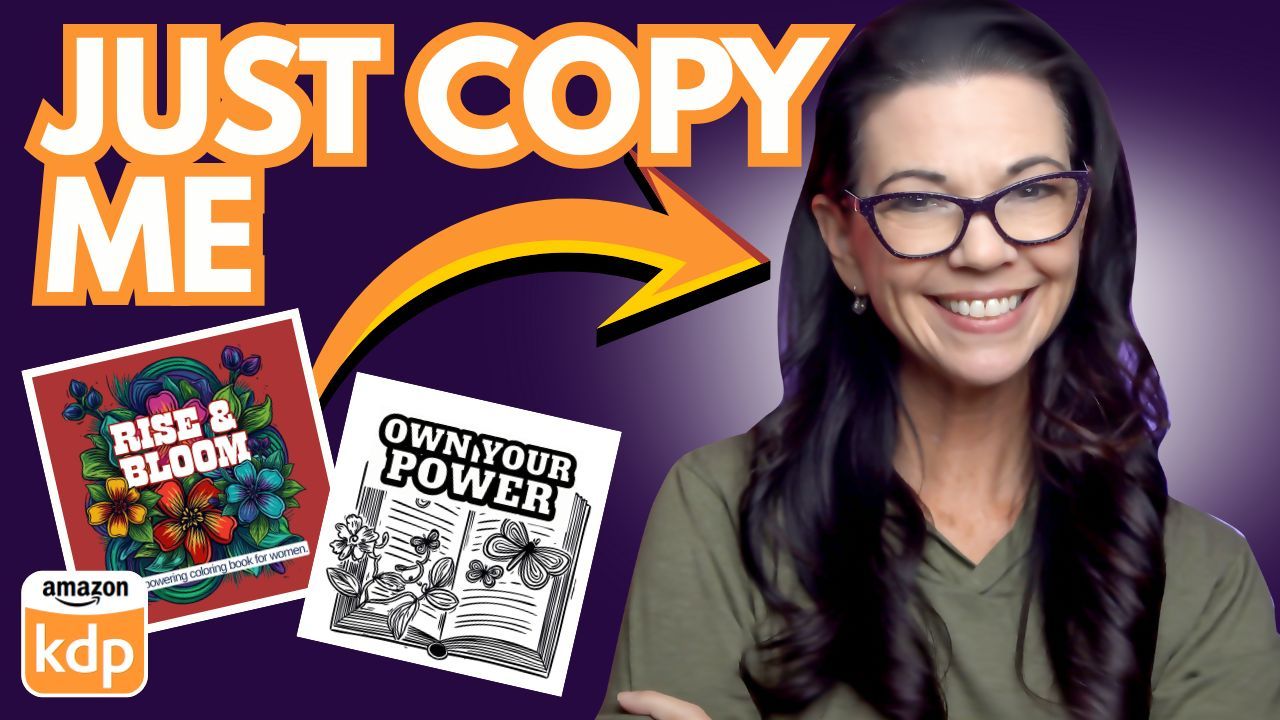
One of my coloring books sells every single day—and I haven’t run ads on it in a long time. The most surprising part? I’m not even convinced people are actually coloring in it.
Instead, I think women are buying it as a small boost of encouragement—a “girl power” gift for friends who are going through a tough time and need a reminder of how strong they really are.
This book started as a cursing coloring book, and while I still love it, I realized something important: the language might be limiting my audience. My girlfriends loved it—but my mom, who never said a bad word in her life, probably wouldn’t. That realization made me decide to create a new empowering coloring book without the cursing, opening the door to a much wider audience.
Here’s the full step-by-step process I used to create this new book using Canva and AI, and how you can do the same.
Choosing the Right Book Size and Layout
Since this coloring book is designed to be a gift, I wanted something that felt personal and easy to carry—so I chose a square 8.5 x 8.5 format instead of a large full-size book.
I start every project with a saved master template in Canva:
-
102 total pages
-
50 coloring pages
-
50 blank back pages (to prevent bleed-through)
-
Title page + copyright
-
Everything already pre-formatted and ready to go
This saves a huge amount of time because I never have to reinvent the wheel. I simply make a copy of the template and delete what I don’t need. For this book, I decided to create a smaller, lower-priced volume, so I used fewer than 50 coloring pages.
Generating the Coloring Pages With Canva AI
For the artwork, I used Magic Media in Canva. I wanted:
-
Flowers
-
Butterflies
-
Possibly birds
-
A clean black-and-white graphic style
-
No realistic images—true coloring pages
Inside Magic Media, I switched from “Images” to “Graphics”, which creates artwork that works much better for coloring books. After testing several styles, I landed on one that produced four different variations per prompt, giving me tons of usable artwork from a single generation.
Once an image was selected:
-
I resized it
-
Centered it
-
Zoomed in to check clarity
-
Confirmed it wasn’t pixelated
-
Verified it would print cleanly through KDP
I repeated that exact process for every page in the book. Some pages used line art for variety, and that contrast really elevated the final product.
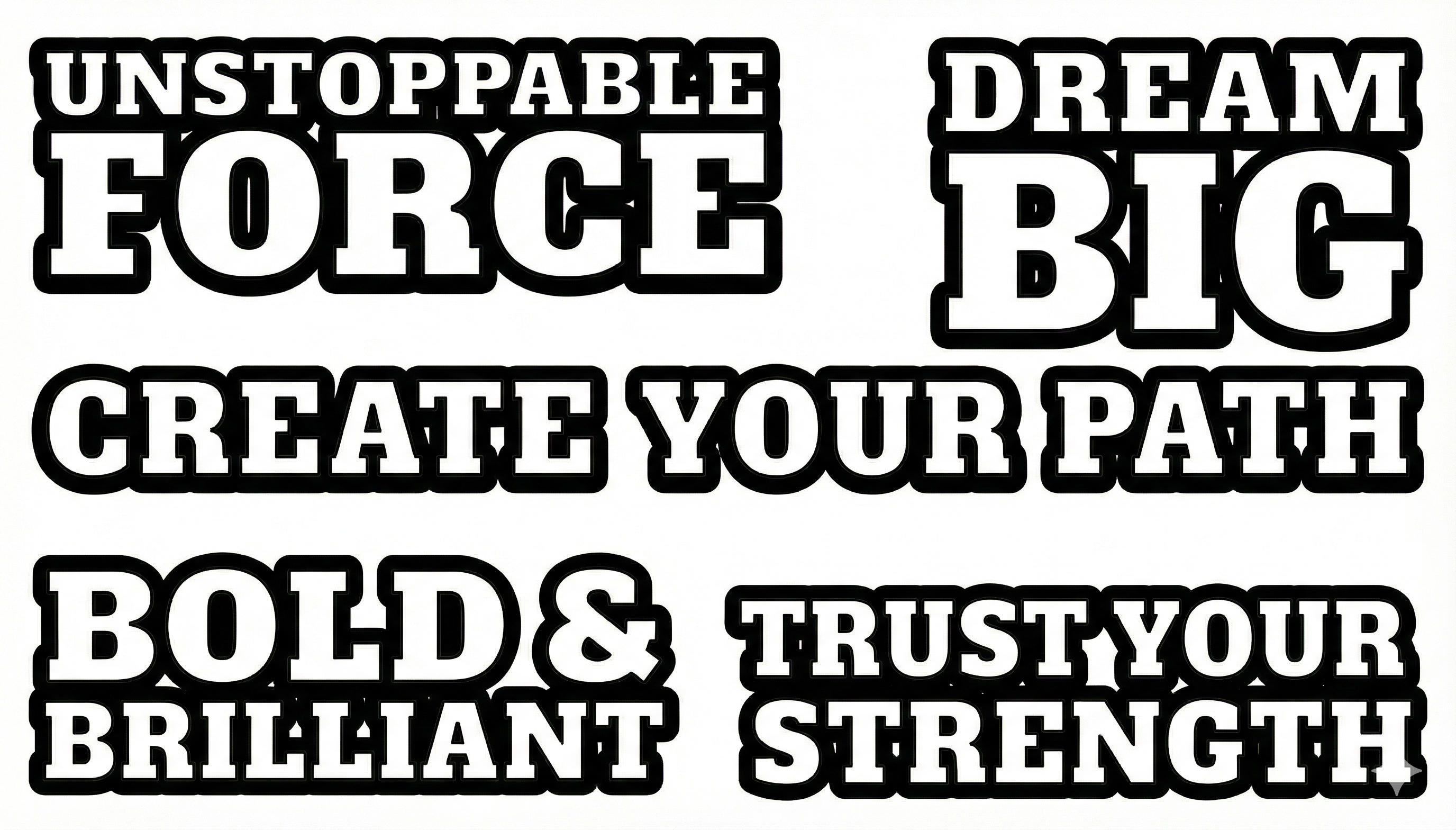
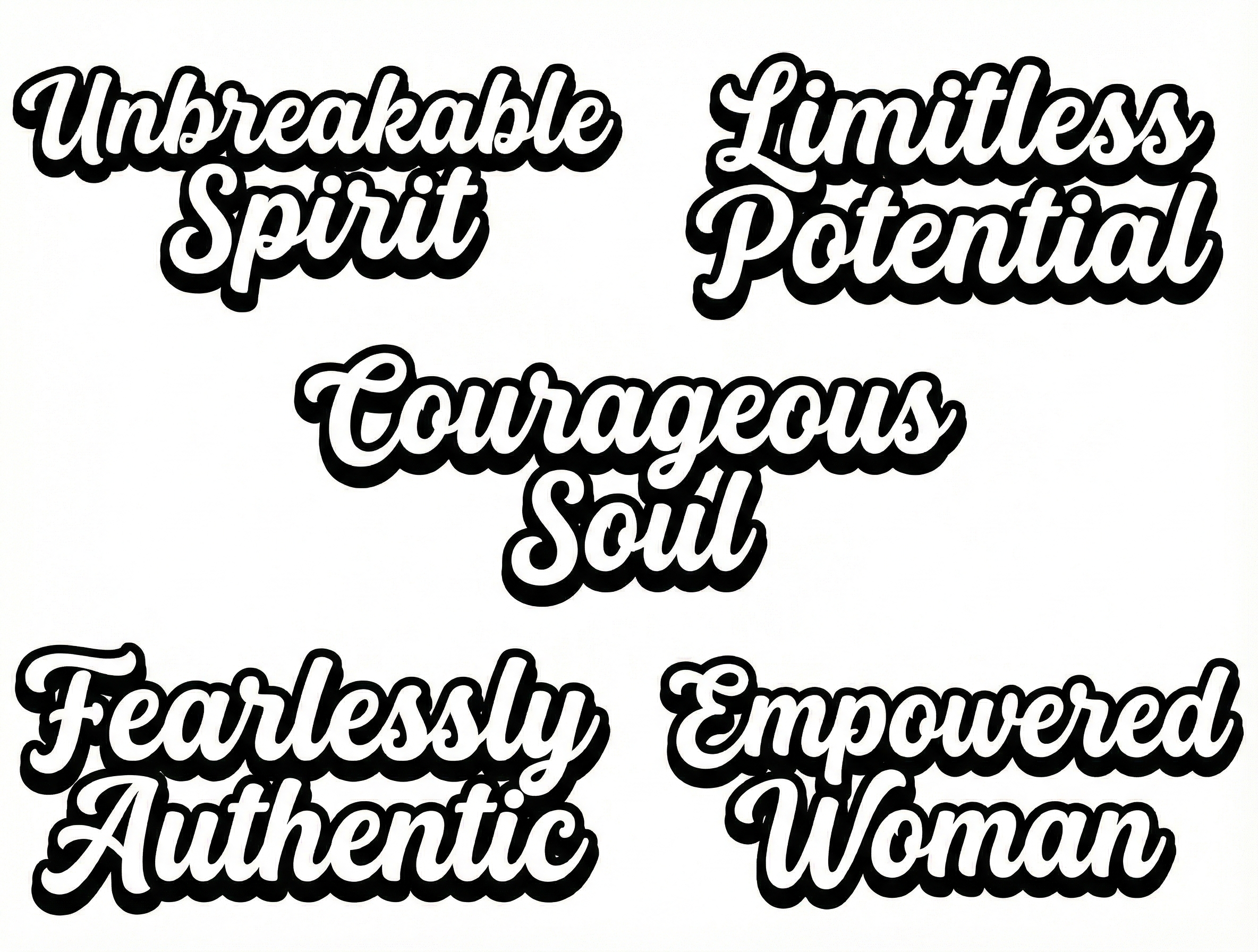
Creating Bold, Colorable Text With AI
The text was actually the hardest part of the book.
At first, I tried using Canva’s pre-made fonts and effects—but the results weren’t working. The text:
-
Didn’t stand out enough
-
Was hard to see on detailed backgrounds
-
Didn’t feel bold or colorable
To fix this, I turned to AI for typography design.
I uploaded a screenshot of one of my older successful text styles into Gemini (you can also do this in ChatGPT) and asked it to:
-
Recreate similar text styles
-
Keep bold outlines
-
Make the words easy to color
-
Maintain a strong visual presence
The results were exactly what I needed. I downloaded multiple variations so the book wouldn’t feel repetitive and mixed them throughout the pages. I also used Canva’s Grid View to visually check repetition and rearranged layouts to keep everything balanced and fresh.

Designing the Cover the Smart Way
Since this is a 50-page 8.5 x 8.5 book, I went to Amazon’s KDP Cover Calculator and entered all my specifications. That gave me the exact trim size and spine width I needed.
Instead of designing from scratch, I:
-
Started with a Canva flower book cover template
-
Adjusted layout and positioning
-
Tested several title designs
-
Scrapped what didn’t match the inside of the book
Eventually, I took one of the actual coloring pages, uploaded it into Gemini, and asked AI to color it. I wanted a bright, high-contrast look on a white background, and the result worked perfectly.
For extra polish:
-
I separated individual flowers using AI
-
Removed the background
-
Layered them into the design for depth and overlap
For the back cover, I always include real interior page samples. This:
-
Sets clear expectations
-
Reduces negative reviews
-
Increases buyer confidence
Preparing Files for Amazon KDP
For printing, file format matters:
Front Cover:
-
Download as PDF Print
-
Use CMYK color mode (for physical print)
-
Highest resolution available
Interior Pages:
-
Download as Single-page PDF
-
Standard PDF is sufficient
-
Full black-and-white interior
For the copyright page, I simply asked AI for a basic copyright statement, selected the best option, and added it directly into the book.
Uploading to KDP and Final Steps
Once everything is downloaded:
-
I upload the interior PDF and the cover PDF into KDP
-
Enter my keywords and description
-
Set pricing
-
Publish
I have many detailed videos covering KDP uploads, pricing strategy, and keyword optimization, which I’ve shared on my website for anyone who wants to go deeper into that side of the process.
Final Thoughts
This empowering coloring book was created:
-
Using a repeatable Canva template
-
With AI generating most of the artwork
-
AI assisting with bold, colorable typography
-
AI even helping with the final colored cover
And the result? A book that sells daily without ads, simply because it meets a real emotional need—encouragement, positivity, and empowerment.